Просмотр новости
Найдите то, что Вас интересует
 Спутники
 РН
РН SpaceX
 Роскосмос
 NASA
NASA
СпутникиРНSpaceXРоскосмосNASAMacworld
In this tutorial we show how to shut down, restart and reboot an iPhone or iPad. That old IT standby: turn it off and on again, can be an effective solution if your Apple device has frozen or slowed down, or is otherwise malfunctioning.
The way you restart or reboot depends a bit on the model you’ve got, although most recent devices use the same method. We will explain the steps you need to take to turn off and restart an iPhone or iPad below, as well as what to do if your iPhone or iPad is frozen and won’t let you restart in the standard way.
How to shut down an iPhone or iPad – At a glance
How to shut down an iPhone or iPad via Control CentreThe easiest way to turn off an iPhone or iPad (in iOS 18 or later) is to swipe down from the right corner to open Control Centre and tap on the Close icon in the top right. You will then see the slider to shut down the iPhone. Swipe this to shut down the iPhone. How to shut down an iPhone or iPad that has Face ID You can also shut down the iPhone or iPad by pressing and holding a volume button at the same time as you press and hold the Power button (on the side or top). To avoid taking a screenshot press and hold the Volume button first and then add the Side button.How to shut down an iPhone of iPad in SettingsAnother way to shut down your iPhone or iPad is via Settings. Go to Settings > General then find Shut Down and tap it. The slider to shut down the iPhone or iPad will appear. How to force-restart an iPhone or iPadIf your iPhone is unresponsive you may need to do a restart. This requires you to press Up Volume then Down Volume and then press the Power button on the side or top. If you keep pressing the Power button eventually the iPhone or iPad will shut down. Press the Power button again to restart. How to shut down an older iPhone or iPadOn an older iPad or any iPhone with a Home button, you could press and hold the Power button on the side or top until the slide to power off message appeared. How to force-restart an older iPhone or iPadIn the case of older iPhones and iPads you needed to press and hold the Home button and the Power button (on side or top) for about 10 seconds in order to force-restart the device.
What’s the difference between restarting, force-restarting and rebooting?
Wondering whether you need to restart or reboot your iPhone? It’s essentially the same thing, just a different word for “turning it off and on again”. The stock response for any IT department looking to solve computer-related ills.
A force-restart, sometimes called a hard reboot, is used when your iPhone has frozen or become completely unresponsive, and the normal shutdown method doesn’t work, perhaps because the screen is unresponsive. The key difference is that a force-restart bypasses the operating system’s normal shutdown sequence.
Importantly, a force-restart does not erase your data – it’s simply a more forceful way to reboot a stuck device. However, it should only be used when a standard restart isn’t possible, as it’s a more abrupt process.
To summarize: restart/reboot is the normal, safe way to turn your iPhone off and on; force-restart is the emergency method for when the screen is frozen or the phone won’t respond to normal commands. We’ll describe both methods in this tutorial.
How to shut down and restart an iPhone or iPad the easy way
It’s so easy to shut down your iPhone using Control Centre.
Foundry
One of the best but perhaps least known features introduced with iOS 18 was the ability to power off or shut down your iPhone from within Control Centre. All you need to do is:
Swipe down on your iPhone screen from the top right to open Control Centre.
Press on the small power icon in the right corner of the screen.
The power off slider will appear. Swipe that to shut down your iPhone.
Once your iPhone has shut down, press and hold the side button, you will then see the white Apple logo. Sometimes it takes a while to restart.
You will have to enter your passcode at startup, even if you usually use Face or Touch ID.
How to shut down and restart your iPhone using buttons
Press volume up and then volume down before pressing the power button on the other side of the iPhone. Foundry
For years shutting down an iPhone or iPad just required users to press and hold a button on iPads and iPhones. This method has changed over the years for a number of reasons. It first changed with the arrival of Siri, because pressing and holding that button would trigger Siri, and it changed again when Apple stopped selling devices with a Home button on the front. Even now, the process for shutting down an iPhone or iPad can trigger a screenshot if you don’t press the buttons in exactly the right way.
Here’s what to do:
Press and hold Volume Up or Volume Down.
Press and hold the Side button.
The power off slider will appear. Swipe that to shut down your iPhone or iPad.
Once your iPhone or iPad has shut down press and hold the side button, you will then see the white Apple logo. Sometimes it takes a while to restart.
Enter your passcode at startup.
How to force-restart an iPhone or iPad
Press the Volume buttons in quick succession followed by the Side button, to force restart. Foundry
If you are unable to use Control Centre because your screen is unresponsive, there is an option that doesn’t require you to touch the screen, it does involve pressing a number of buttons in succession though.
This is a force-restart (sometimes known as a hard reset), and should hopefully fix any issues you were having.
Press Volume Up.
Press Volume Down.
Press and hold the Side button.
The power off slider will appear. You can swipe that to shut down your iPhone or iPad, but if your screen is unresponsive just continue to hold the Side button and your iPhone or iPad will shut down.
Once your device has shut down, press and hold the side button – you will then see the white Apple logo. Sometimes it takes a while to restart.
You will have to enter your passcode at startup, even if you usually use Face or Touch ID.
What to do if restarting your iPhone or iPad doesn’t fix the problem
If, following the restart, things are still not as they should be, then you might need to reset your device to factory settings and use a backup to recover your iPhone or iPad.
A factory reset means your whole device will be wiped and the settings will return to the default settings that it left the factory with.
If even that doesn’t solve the problem, a trip to the Apple Store may be in order. Sadly, this often results in a fixed device but with all the data wiped clean, which makes it vitally important that you backed up your iPhone or iPad beforehand, either with iCloud or via the Finder. With that safety net in place you can restore your device when it starts to have problems. Read about how to back up your iPhone or iPad.
In this tutorial we show how to shut down, restart and reboot an iPhone or iPad. That old IT standby: turn it off and on again, can be an effective solution if your Apple device has frozen or slowed down, or is otherwise malfunctioning.
The way you restart or reboot depends a bit on the model you’ve got, although most recent devices use the same method. We will explain the steps you need to take to turn off and restart an iPhone or iPad below, as well as what to do if your iPhone or iPad is frozen and won’t let you restart in the standard way.
| How to shut down an iPhone or iPad via Control Centre | The easiest way to turn off an iPhone or iPad (in iOS 18 or later) is to swipe down from the right corner to open Control Centre and tap on the Close icon in the top right. You will then see the slider to shut down the iPhone. Swipe this to shut down the iPhone. |
| How to shut down an iPhone or iPad that has Face ID | You can also shut down the iPhone or iPad by pressing and holding a volume button at the same time as you press and hold the Power button (on the side or top). To avoid taking a screenshot press and hold the Volume button first and then add the Side button. |
| How to shut down an iPhone of iPad in Settings | Another way to shut down your iPhone or iPad is via Settings. Go to Settings > General then find Shut Down and tap it. The slider to shut down the iPhone or iPad will appear. |
| How to force-restart an iPhone or iPad | If your iPhone is unresponsive you may need to do a restart. This requires you to press Up Volume then Down Volume and then press the Power button on the side or top. If you keep pressing the Power button eventually the iPhone or iPad will shut down. Press the Power button again to restart. |
| How to shut down an older iPhone or iPad | On an older iPad or any iPhone with a Home button, you could press and hold the Power button on the side or top until the slide to power off message appeared. |
| How to force-restart an older iPhone or iPad | In the case of older iPhones and iPads you needed to press and hold the Home button and the Power button (on side or top) for about 10 seconds in order to force-restart the device. |
Wondering whether you need to restart or reboot your iPhone? It’s essentially the same thing, just a different word for “turning it off and on again”. The stock response for any IT department looking to solve computer-related ills.
A force-restart, sometimes called a hard reboot, is used when your iPhone has frozen or become completely unresponsive, and the normal shutdown method doesn’t work, perhaps because the screen is unresponsive. The key difference is that a force-restart bypasses the operating system’s normal shutdown sequence.
Importantly, a force-restart does not erase your data – it’s simply a more forceful way to reboot a stuck device. However, it should only be used when a standard restart isn’t possible, as it’s a more abrupt process.
To summarize: restart/reboot is the normal, safe way to turn your iPhone off and on; force-restart is the emergency method for when the screen is frozen or the phone won’t respond to normal commands. We’ll describe both methods in this tutorial.
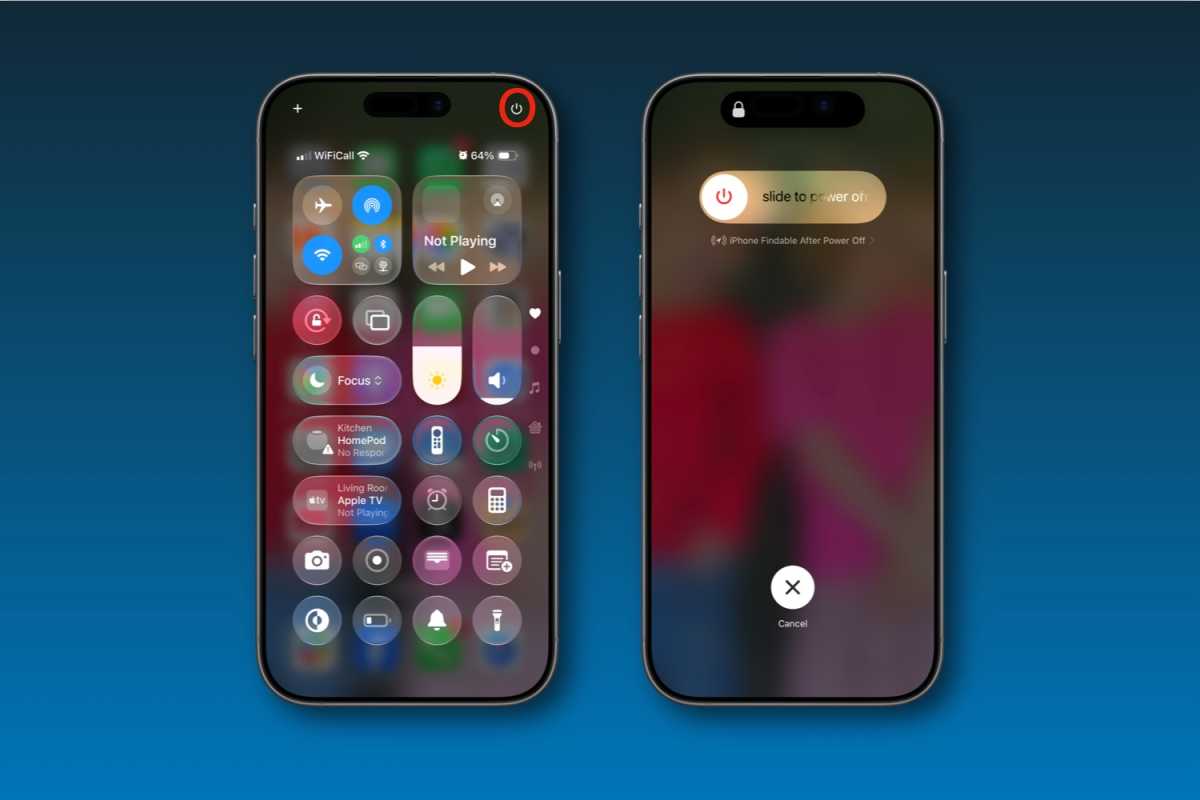
It’s so easy to shut down your iPhone using Control Centre.
Foundry
One of the best but perhaps least known features introduced with iOS 18 was the ability to power off or shut down your iPhone from within Control Centre. All you need to do is:
 Press volume up and then volume down before pressing the power button on the other side of the iPhone.
 Foundry
For years shutting down an iPhone or iPad just required users to press and hold a button on iPads and iPhones. This method has changed over the years for a number of reasons. It first changed with the arrival of Siri, because pressing and holding that button would trigger Siri, and it changed again when Apple stopped selling devices with a Home button on the front. Even now, the process for shutting down an iPhone or iPad can trigger a screenshot if you don’t press the buttons in exactly the right way.
Here’s what to do:
 Press the Volume buttons in quick succession followed by the Side button, to force restart.
 Foundry
If you are unable to use Control Centre because your screen is unresponsive, there is an option that doesn’t require you to touch the screen, it does involve pressing a number of buttons in succession though.
This is a force-restart (sometimes known as a hard reset), and should hopefully fix any issues you were having.
If, following the restart, things are still not as they should be, then you might need to reset your device to factory settings and use a backup to recover your iPhone or iPad.
A factory reset means your whole device will be wiped and the settings will return to the default settings that it left the factory with.
If even that doesn’t solve the problem, a trip to the Apple Store may be in order. Sadly, this often results in a fixed device but with all the data wiped clean, which makes it vitally important that you backed up your iPhone or iPad beforehand, either with iCloud or via the Finder. With that safety net in place you can restore your device when it starts to have problems. Read about how to back up your iPhone or iPad.
| # | Наименование новости | Тональность | Информативность | Дата публикации |
|---|---|---|---|---|
| 1 | How to put an iPhone into recovery mode and return to factory settings | 0 | 7.94 | 11-08-2026 |
| 2 | The iPhone event will be missing some iPhones this year | 0 | 13.88 | 19-08-2026 |
| 3 | Stop iPhone Adaptive Power from turning on Low Power Mode | 0 | 18.02 | 24-07-2026 |
| 4 | How to enter recovery restore screen on iPhone in iOS 27 | 0 | 20.02 | 13-07-2026 |
| 5 | 10 clever uses for your iPhone’s USB-C port | 0 | 5 | 09-07-2026 |
| 6 | Macworld Podcast: Folding phones and the iPhone Ultra | 0 | 10.61 | 14-08-2026 |
| 7 | How Apple trade in works and saves you money | 0 | 11.2 | 12-08-2026 |
| 8 | Regret installing iOS 27 beta? Here’s how to get back to iOS 26. | 0 | 24.41 | 10-07-2026 |
| 9 | How to save a slideshow as a video on iPhone, iPad, and Mac | 0 | 17.46 | 02-07-2026 |
| 10 | How to disable math results in Messages for iPhone and iPad | 0 | 5 | 15-05-2025 |